Purchase module is designed to control all the purchase activities. It has three sub-modules: Dashboard, Purchase order, Purchase invoice.
1. Dashboard
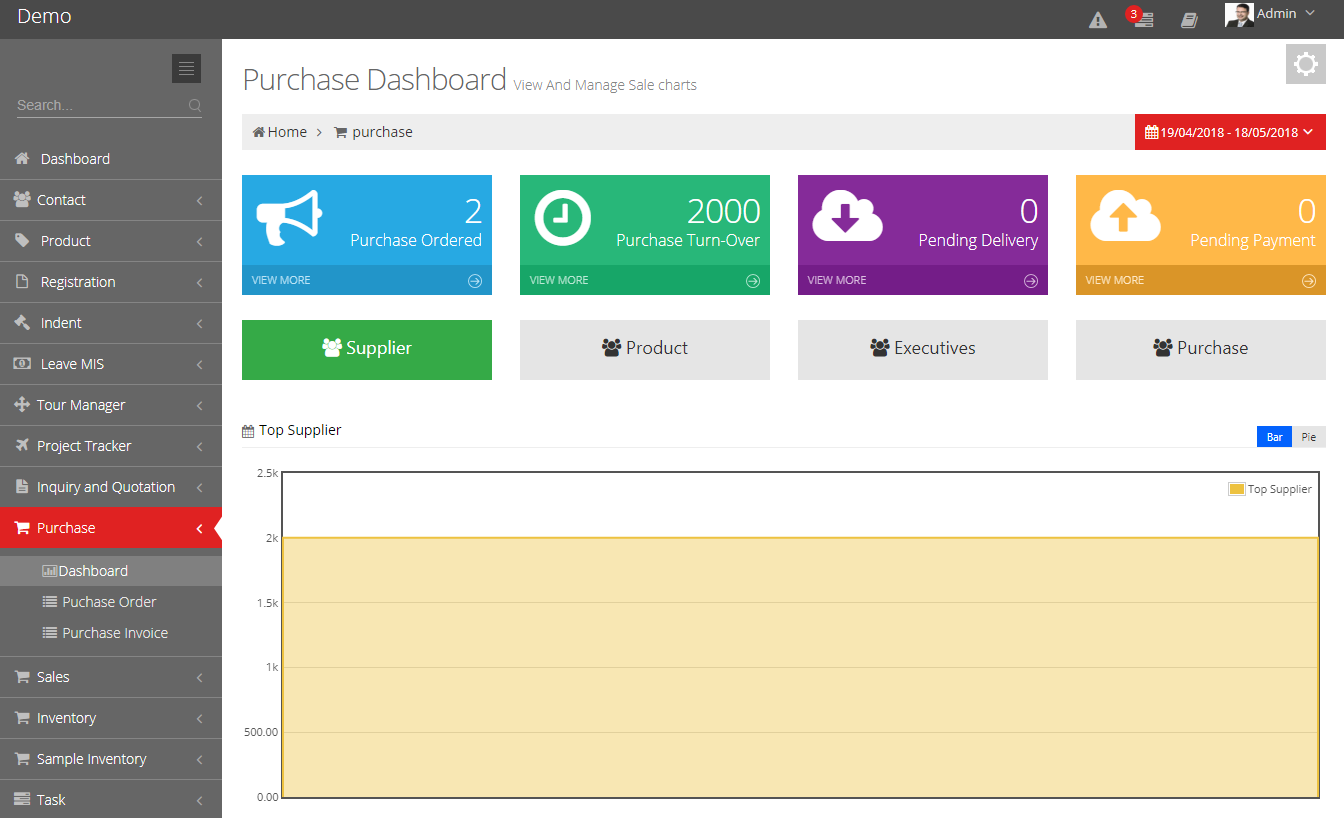
In this sub module user can view and control all purchase activities. Here data represented in CARD, Graphs, and Table format. The top bar of dashboard has date range section where user can specify date range to see data of particular period.
1.1 Cards
The cards section comprises four cards: Purchase Order, Purchase Turn-Over, Pending Delivery, Pending Payment.
- Purchase Order : : It displays the total number of purchase order. By clicking View More button of card screen scrolls down by itself and table of record is seen.
- Purchase Turn-Over :It displays the number represents total purchase. By clicking View More button of card screen scrolls down by itself and table of record is seen.
- Pending Delivery :It displays the number represents deliveries which are pending. By clicking View More button of card screen scrolls down by itself and table of record is seen.
- Pending Payment :It displays the number representing payments which is pending. By clicking View More button of card screen scrolls down by itself and table of record is seen.

1.2 Graph
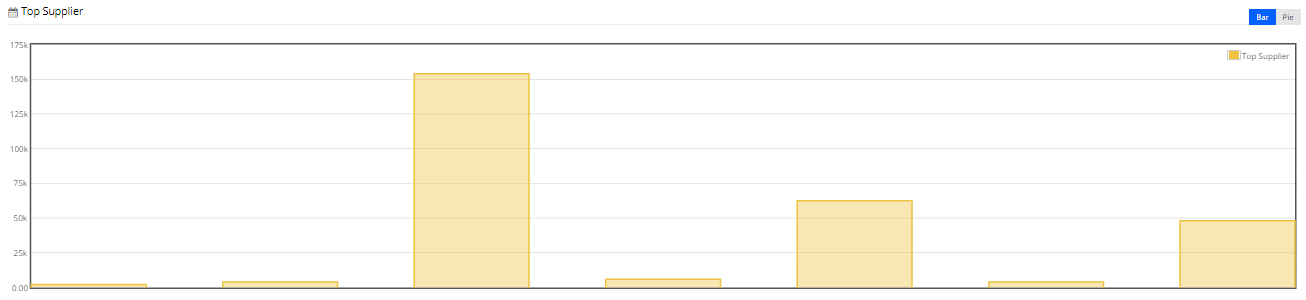
It gives the graphical representation of the data. The graph is represented in two ways: Bar and Pie. This section is further divided into four sub-sections:
- Supplier :Here user can see the list of top suppliers who supply products to user. By clicking on graph screen scrolls down and table of top suppliers is seen.
- Product :Here user can see the list of top products that user purchase. By clicking on graph screen scrolls down and table of top products is seen.
- Executives:Here user can see the list of top executives who manage purchase activity. By clicking on graph screen scrolls down and table of top executives is seen.
- Purchase :Here user can see currency wise, customer wise, Product wise, Executive wise turn over. By clicking on graph screen scrolls down and table of record is seen.
1.3 Table
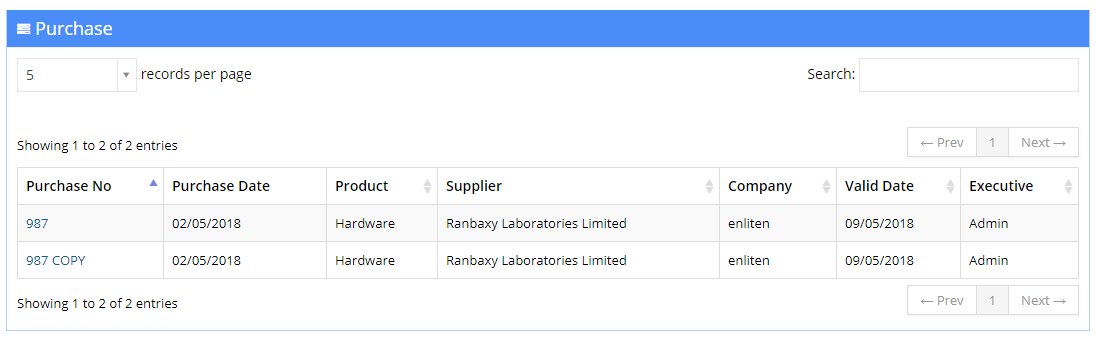
The table section is divided into seven columns which are as follows :
- Purchase No :This column display the Purchase order number of the product.
- Purchase Date :This column display the Purchase date.
- Product :This column display the products that have been bought.
- Supplier :This column display the names of the suppliers.
- Company :This column display the name of the company who bought products.
- Valid Date :This column display the valid date of the purchase order.
- Executive :This column display the name of the person who purchase the product.
2. Purchase Order
Proforma Invoice module of Sales is designed to Create and manage preliminary bills of sales. The Proforma page displays list of generated invoices. It has two sections: Overview and Add New.
2.1 Overview
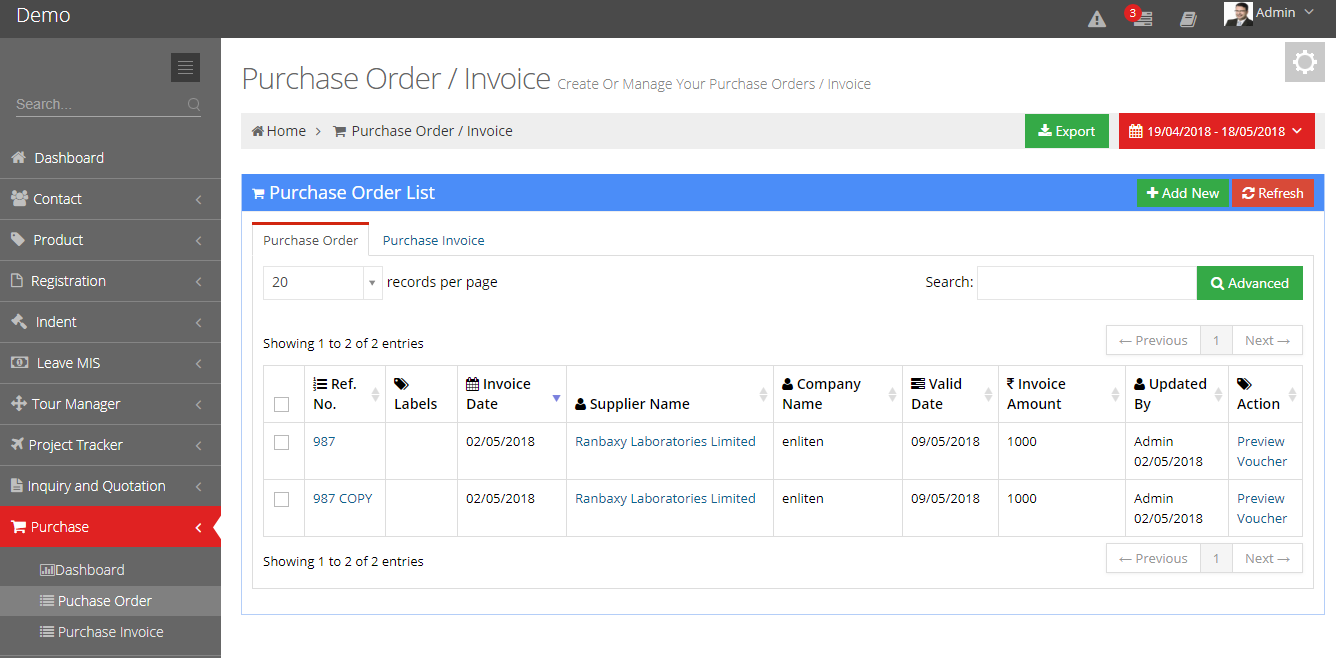
The top bar of Purchase order page has two buttons: Export and Date Range.
- Date :Here the user can see entries of particular day by specifying a date or date range.
- Export :By clicking export button user can export entries of specific day in Tally XML format.
Purchase orders page displays entries in tabular format. The table contain nine columns which are as follows:
- Ref No :Here user can see the reference number of purchase orders.
- Labels :This column displays the labels of Purchase orders.
- Invoice Date :This column displays the invoice date of product.
- Supplier Name :This column displays the name of person who supplies products.
- Company Name :This column displays the name of company who bought products.
- Valid date :This column displays the valid date of purchase order.
- Invoice Amount :This column displays invoice amount.
- Updated By :This column displays the name of person who updated or created purchase order.
- Action :The column comprises Preview Voucher link, by clicking on this link user can see preview of invoices.
2.2 Add New
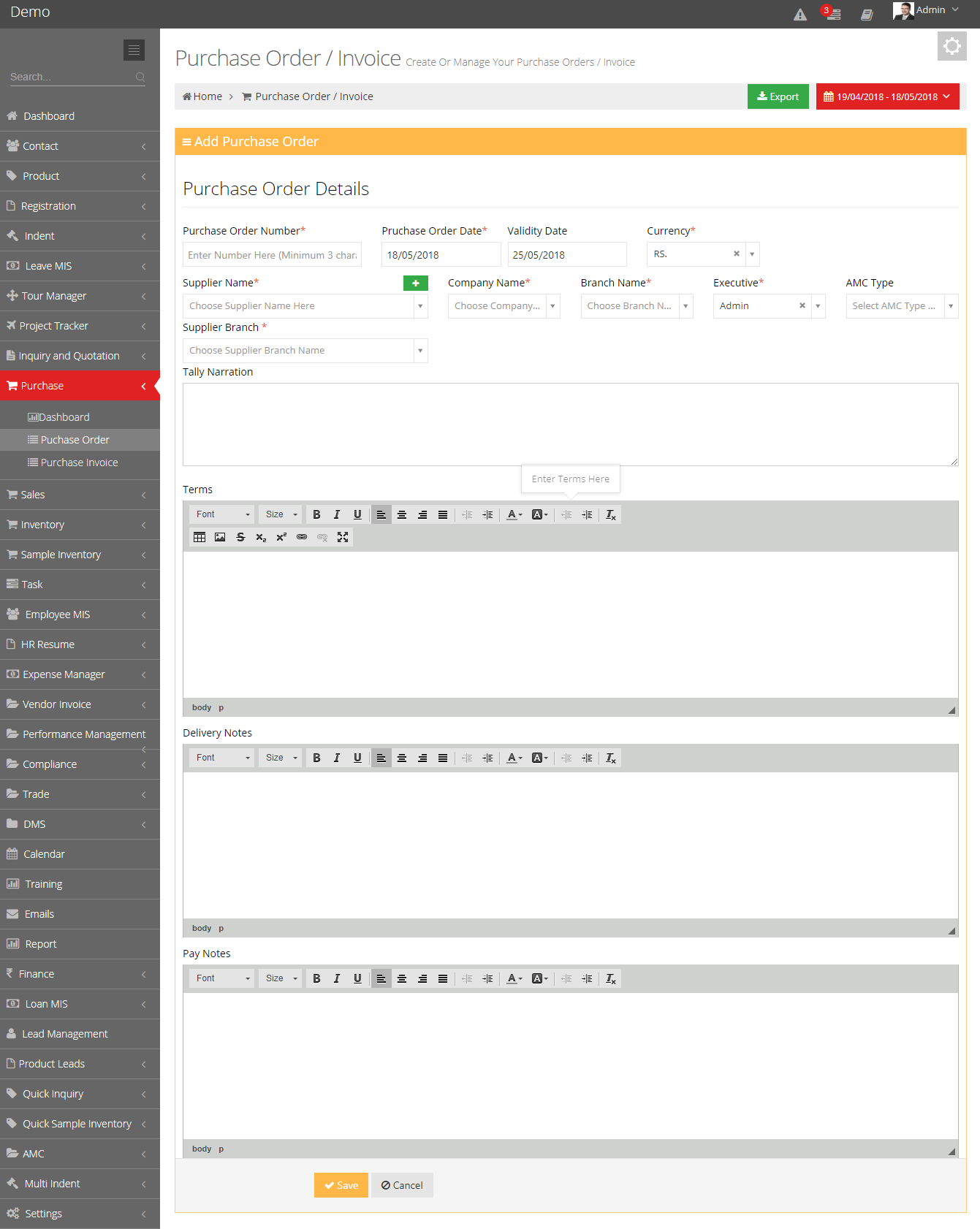
In Add new tab user can create purchase orders. It has following fields:
- Purchase Order Number :Here user can specify the Purchase Order Number.
- Purchase Order Date :Here user can specify the Purchase Order Date.
- Validity Date :This field comprises the Validity Date of purchase order.
- Currency :Here user can specify the Economic Unit which is in use.
- Supplier Name :Here user can specify the name of supplier.
- Company Name :Here user can specify the company who bought products.
- Branch Name :Here user can specify the branch name of that company who bought products.
- Executive :Here user can specify the name of person who is sending purchase order.
- AMC Type :Here user can define the type of Annual Maintenance Contract.
- Supplier Branch :Here user can specify the suppliers branch name.
- Tally Narration :Here user can specify the description of transaction.
- Terms :Here user can specify the terms of products.
- Delivery Note :Here user can specify the delivery details of product.
- Pay Note :Here user can specify the payment details .
3. Purchase Invoice
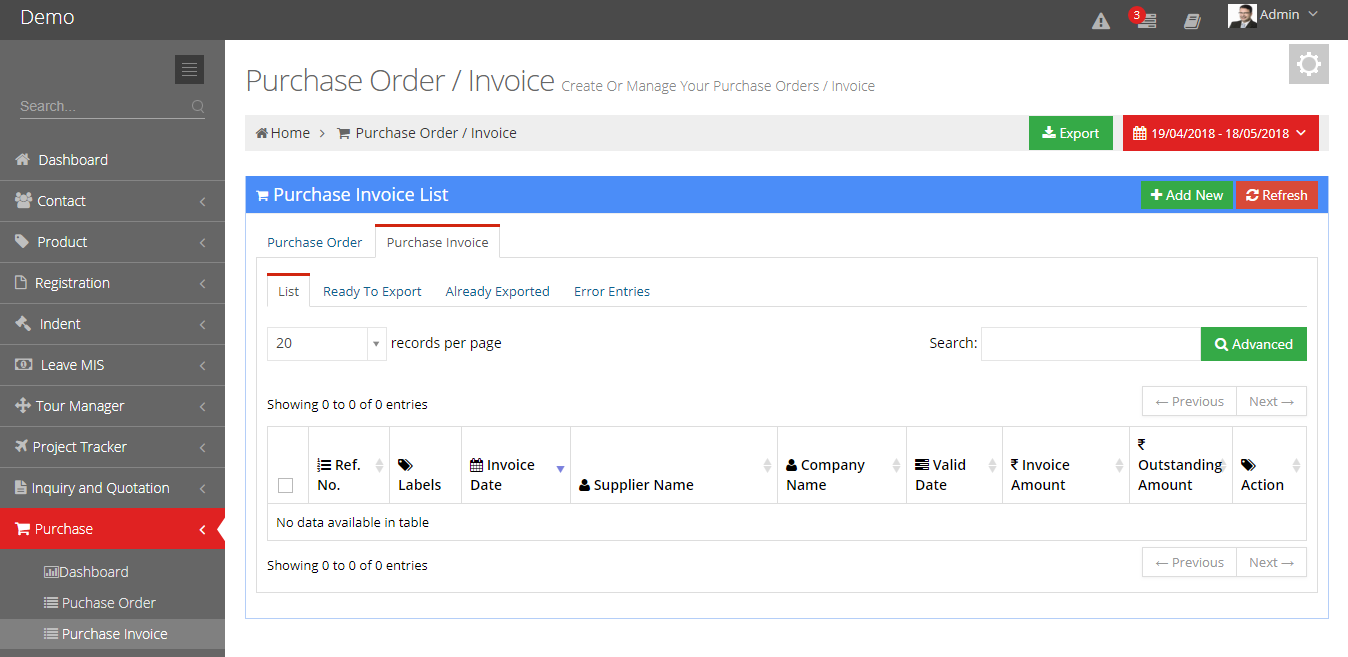
Purchase Invoice module is designed to create and manage Purchase invoices. The Purchase invoice tab displays list of invoices. This sub module is divided into four sections: List, Ready To Export, Already Exported, Error Entries.
3.1 List
List section comprises all entries of purchase invoices including invoices which are generated but not exported into Tally XML format. Invoices which have been exported and invoices which are not properly generated or displayed error while exporting into Tally XML format.
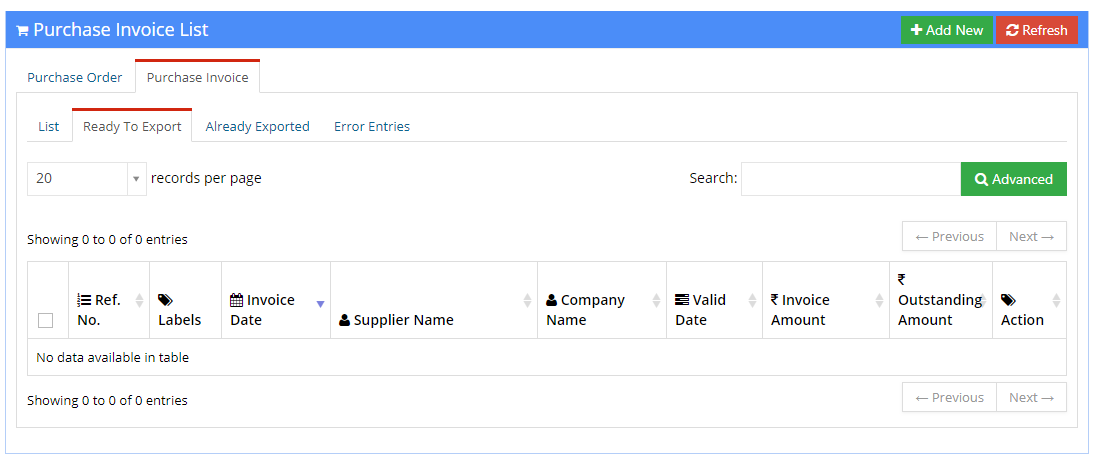
3.2 Ready To Export
The Ready To Export section displays list of invoices, which are created, but not exported into Tally XML format.
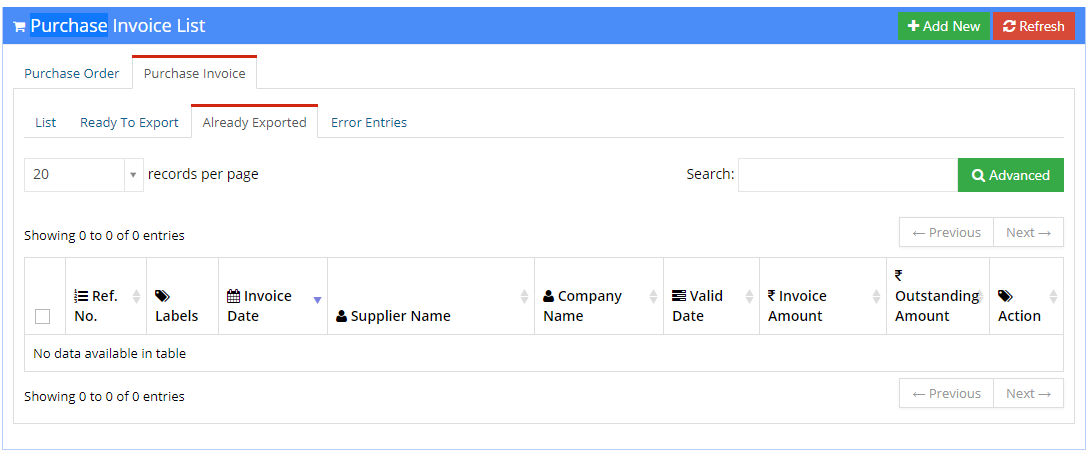
3.3 Already Exported
The Already Exported section displays list of invoices which are already exported into Tally XML format.
3.4 Error Entries
The Error Entries section displays list of invoices that displays error while exporting into Tally XML format.
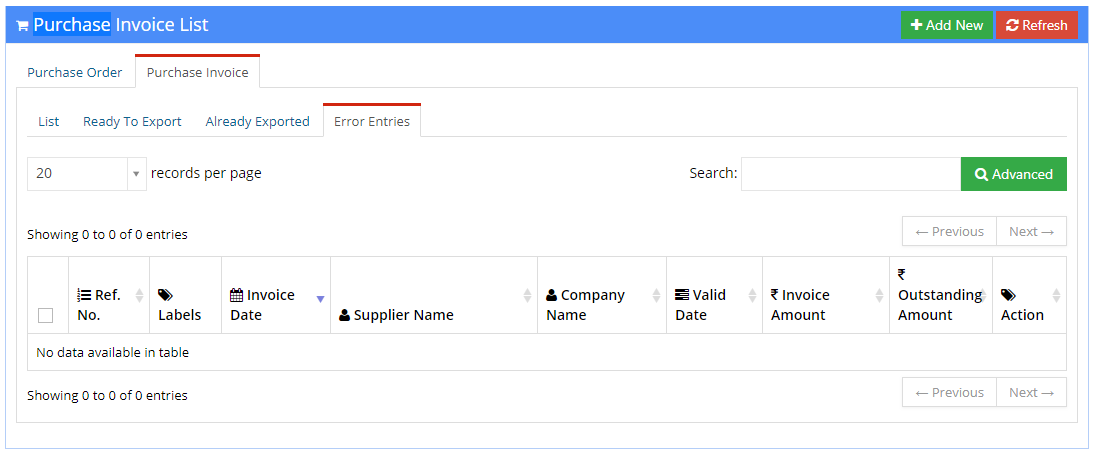
All the entries display in above sections are in tabular format. The tables is categorized into nine columns which are as follows:
- Ref No: This column displays reference number of purchase orders.
- Labels: This column displays labels of Purchase orders.
- Invoice Date: This column displays invoice date of product.
- Supplier Name: This column displays the name of person who supplies products.
- Company Name: This column displays the name of company who bought products.
- Valid date: This column displays the valid date of purchase order.
- Invoice Amount: This column displays invoice amount.
- Outstanding Amount: This column displays the outstanding amount of invoices.
- Updated by: This column displays the name of person who updated or created purchase order.
- Action: This column displays Preview Voucher link, by clicking on this link user can see preview of invoices.
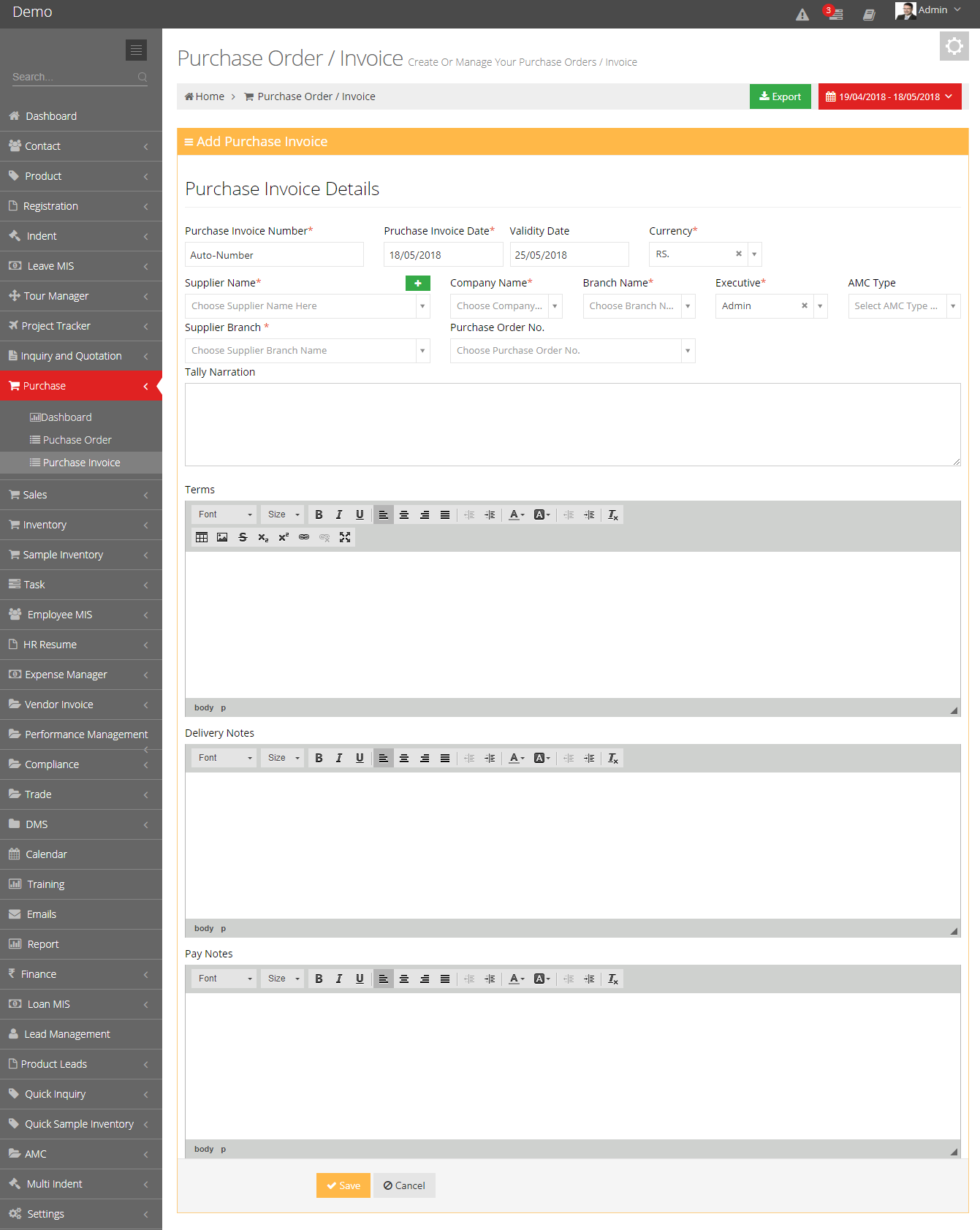
3.5 Add New
User can Generate Invoices by clicking Add New button which is given in top right corner of Sales Invoice page. It has following fields :
- Purchase Invoice Number: This field comprises purchase invoice number.
- Purchase Invoice Date: This field comprises purchase invoice date when it is generated.
- Validity Date: This field contain the validity date of purchase order.
- Currency: Here user can select currency.
- Supplier Name: Here user can specify the name of supplier.
- Company Name: This field comprises the name of user's company.
- Branch Name: This field comprises the name of branch.
- Executive: This field comprises the Name of executive who will send invoice.
- AMC Type: Here user can define the type of Annual Maintenance Contract.
- Supplier Branch: Here user can specify the suppliers branch name.
- Purchase Order Number: Here user can specify the purchase order number.
- Tally Narration: This field comprises the description of transaction.
- Terms: Here user can define the terms and conditions of product and services.
- Delivery Note: Delivery note field comprises the description of goods delivery.
- Pay Note: Pay note field comprises the payment details of invoice.