Loan MIS module of Edifybiz is designed to help DSA(Direct Sales Agency) to manage their Customer Profiles and Financial Documents. It comprises three Sub-Modules which are listed as below:
- Loan MIS
- Loan Renew
- Setting
Loan MIS
In 'Loan MIS' user can control the loan process. Loan Manager comprises four sub-sections such as Dashboard, File Open List, File Reject List, File Close List.
Dashboard
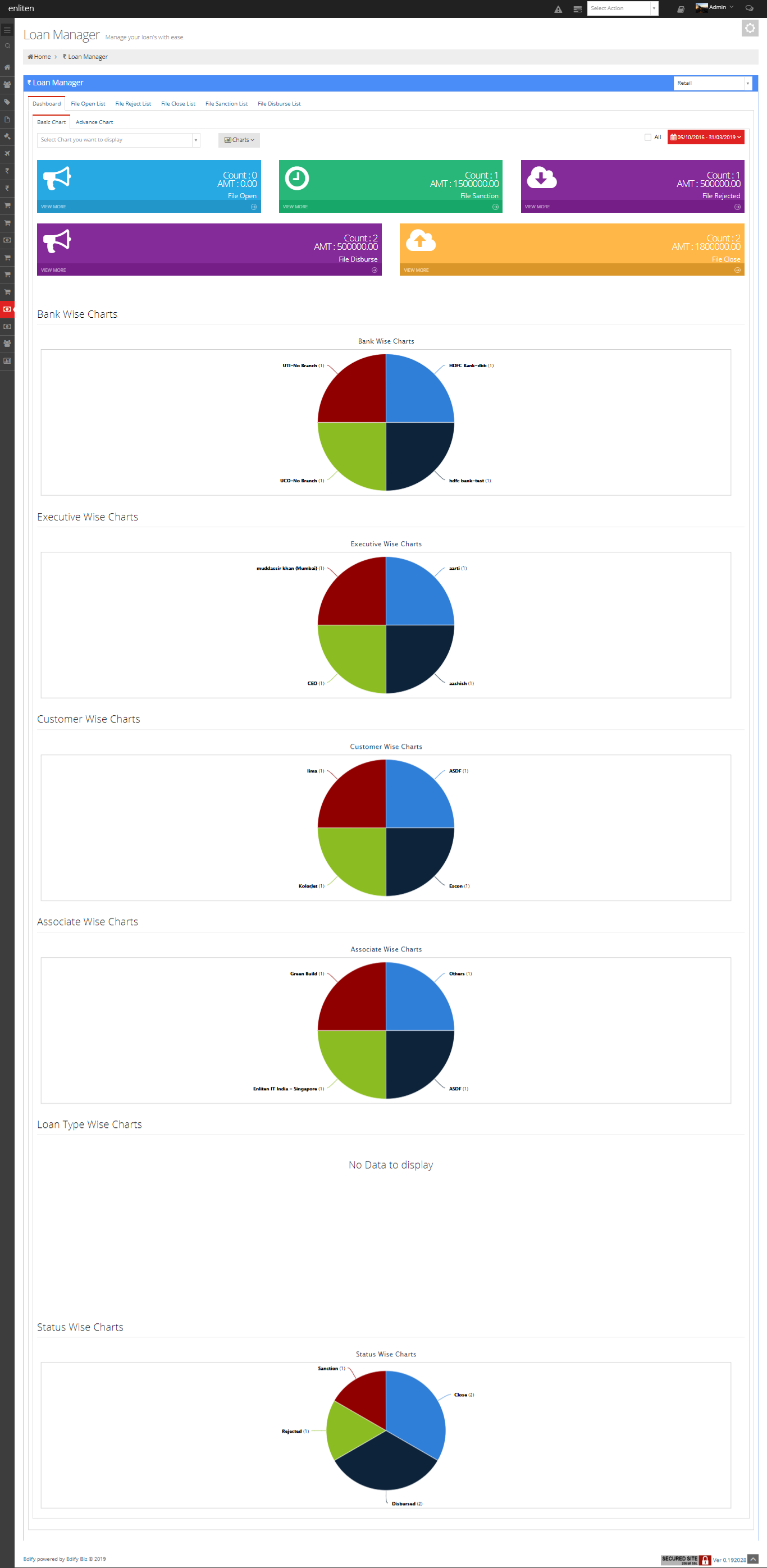
The dashboard gives the summary of the loan process. It is further classified into two parts, namely Basic Chart and Advance Chart.
Basic Chart
- Search Tab: Search Tab helps user to quickly search the charts given in the graph section.
- Chart Button: In 'Basic Chart' user can see the charts in two formats such as Pie and Bar. By clicking on this dropdown user can change the type of graph.
- Date Range Button: Here, user can see the data of a particular period by specifying Date Range.
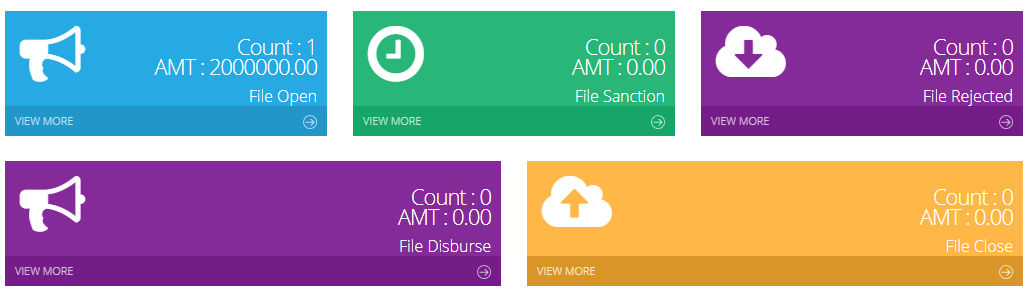
- File Open: The File Open card displays the total number of files which are in the loan process and the total amount of these files. By clicking on the View More button it will trigger user to the File Open List section.
- File Sanction: The File Sanction card displays the total number of files which have been sanctioned and total amount of these files. By clicking on the View More button it will trigger user to the File Open List section.
- File Rejected: The File Rejected card displays the total number of rejected files and the total amount of these files. By clicking on the View More button it will trigger user to the File Reject List section.
- File Disburse: The File Disburse card displays the total number of disbursed files and the total amount of these files. By clicking on the View More button it will trigger user to the File Open List section.
- File Close: The File Close card displays the total number of closed files and the total amount of these files.By clicking on the View More button it will trigger user to the File Close List section.
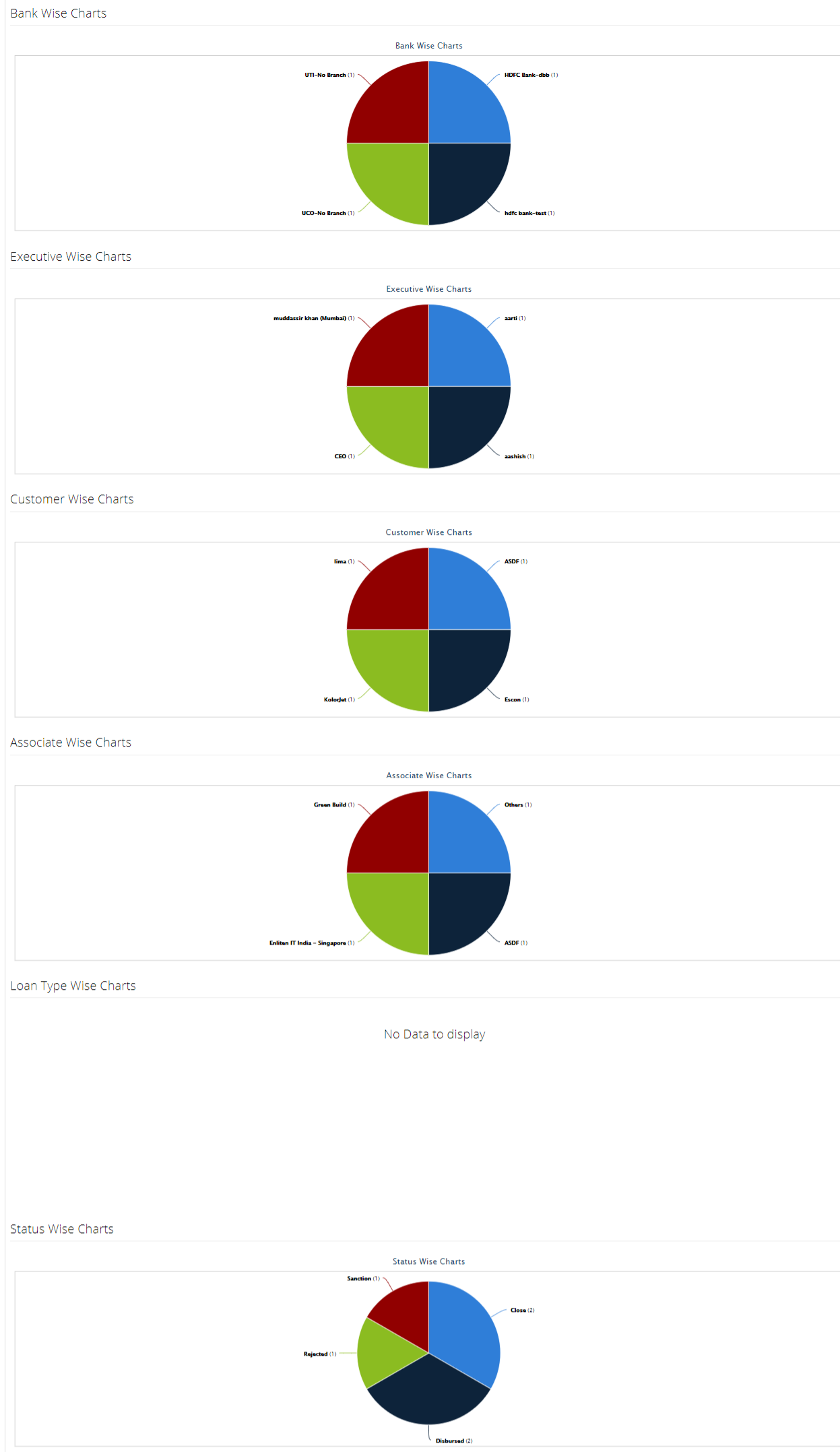
- Bank Wise Charts: It represents chart by the bank of the files.
- Executive Wise Charts: It represents the chart by the executive, who is controlling the loan processes of that file.
- Loan Type Wise Charts: It represents chart by the loan type of the files.
- Status Wise Charts: It represent the chart by the status of the files.
- Status 1 Wise Charts: It represent the chart by the status 1 of the files.
- Status 2 Wise Charts: It represent the chart by the status 2 of the files.
Advance Chart
The 'Basic Chart' comprises a Search Tab, Chart Button and Date Range Button.
It is further classified into two sub-parts, namely Cards and Graph.
Cards
The Card section has five cards which are listed as follows:
Graph
It represents data in a Graphical format. The graph is categorized into six parts depending on the type of charts as follows:
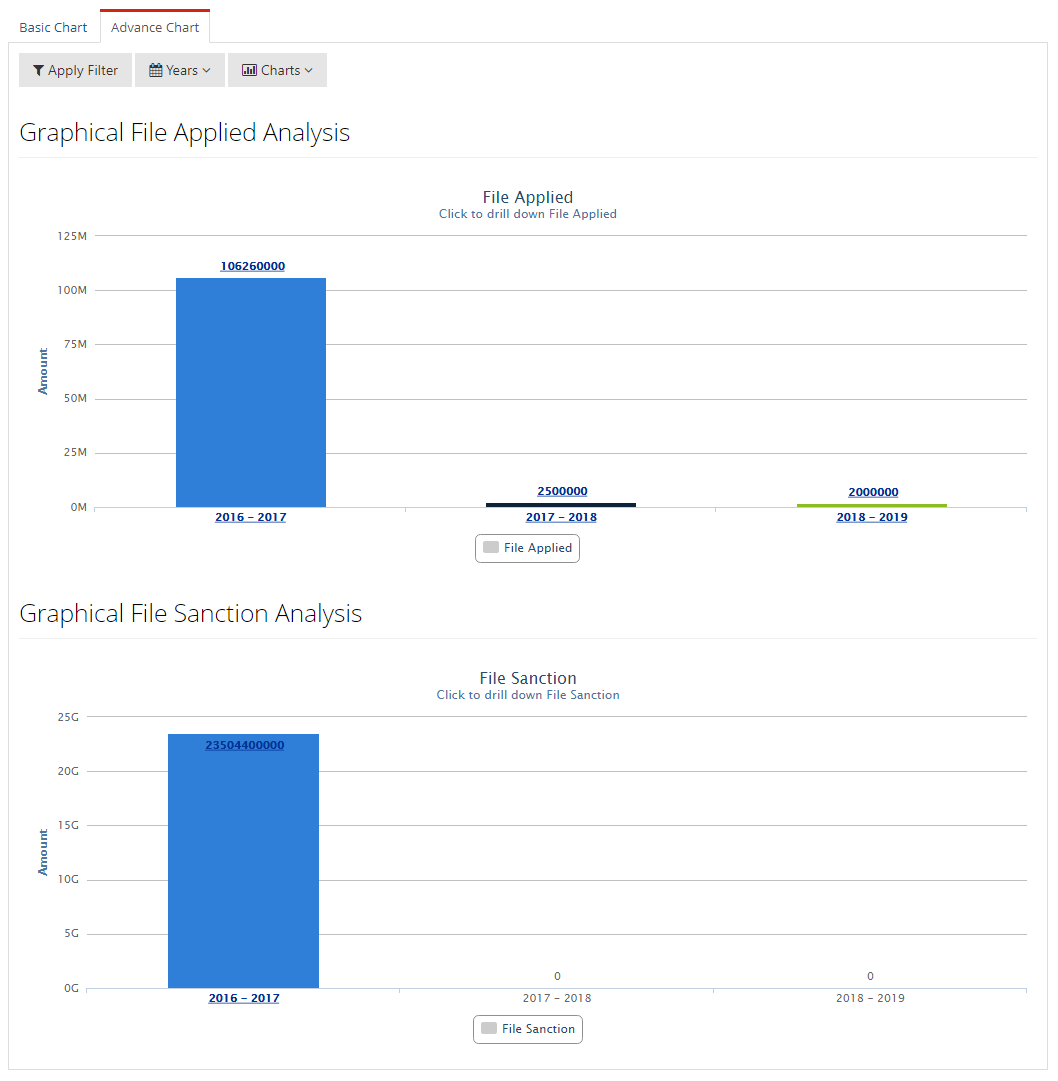
'Advance Chart' section helps user to search more specific information about the status of the files. The Graph section of the 'Advance Chart' displays the chart, of files which are in a loan process and the files which have been sanctioned. Graph displays records yearly, but user can be able to see the records quarterly by clicking on the Graph. It has three tabs in the top left corner namely Apply Filter, Years, Charts
- Apply Filters: User can see more specific data using filters. It is consists of four fields as follows:
- Contact Name: Here, user can specify the contact name.
- Bank Name: Here, user can specify the name of the bank applied for a loan.
- Executive Name: Here, user can specify the name of the person who manages loan file.
- Loan Type: Here, user can specify the Loan Type.
- Years: Here, the user can select a range of year to view a data of specific year.
- Charts: Here, user can see the charts in two formats such as Pie and Bar. By clicking on this dropdown user can change the type of graph.
File Open List
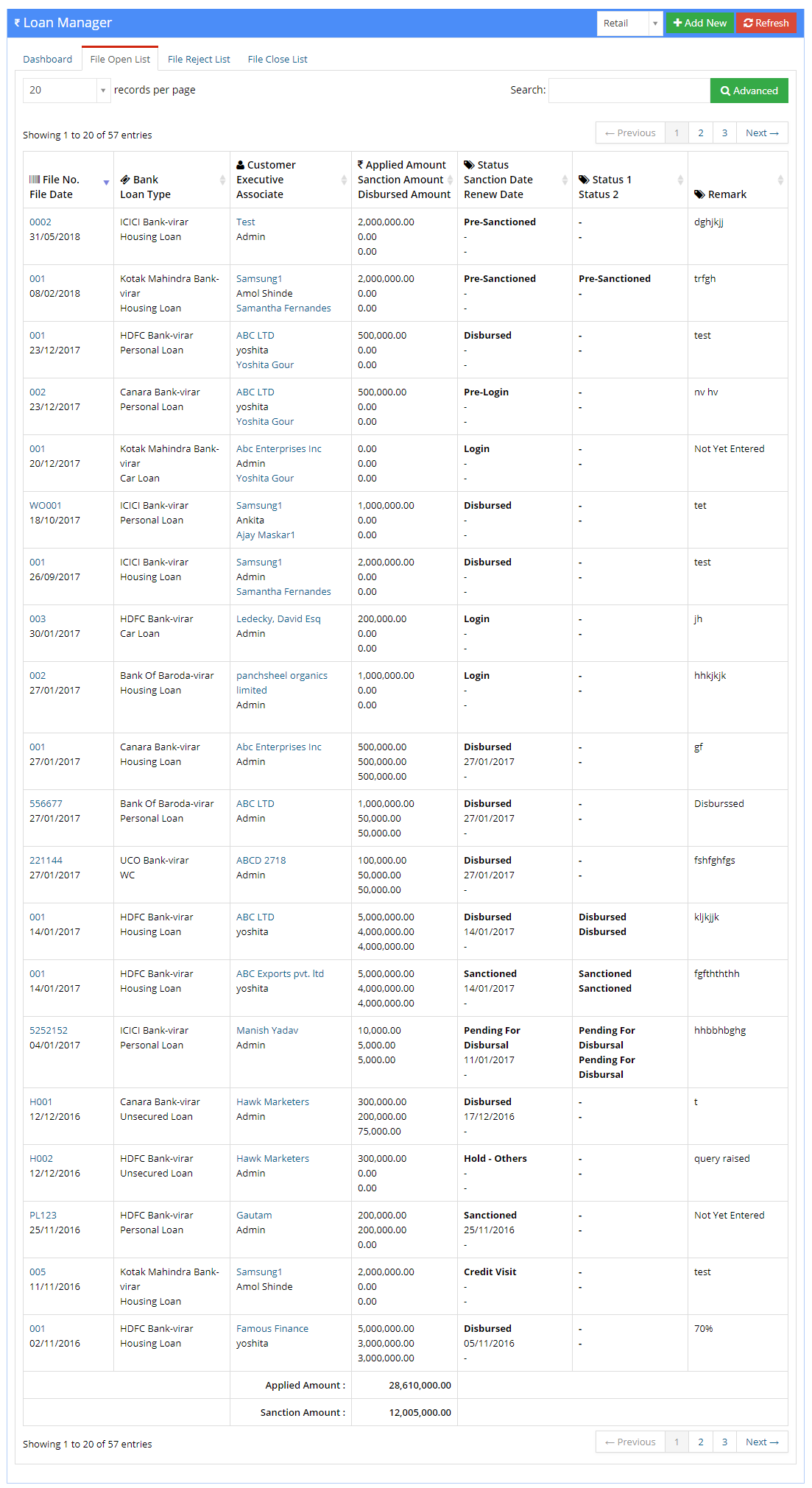
The File Open List display the record of those files which are in a loan process.
File Reject List
The File Reject List display the record of those files which are not sanctioned.
File Close List
The File Close List display the record of those files which have been sanctioned.
The records given in above three sections are in table format. The table consists of seven columns which are given below:
- File No and File Date: This column display the File Number and the Date.
- Bank and Loan Type: This column display the name of the Bank applied for the loan and Loan type.
- Customer, Executive, and Associate: This column display the name of the Customer, name of the Executive who work on that file, and the name of the Associate.
- Applied Amount, Sanction Amount, Disbursed Amount: This column display the Applied amount for the loan, loan Sanctioned amount and Disbursed amount.
- Status, Sanction Date, and Renew Date: This column display the current Status of the file, Sanctioned Date, and Renew date.
- Status 1 and Status 2: This column display the Status 1 and Status 2 of the file.
- Remark: This column display Additional Information of the file.
Add New
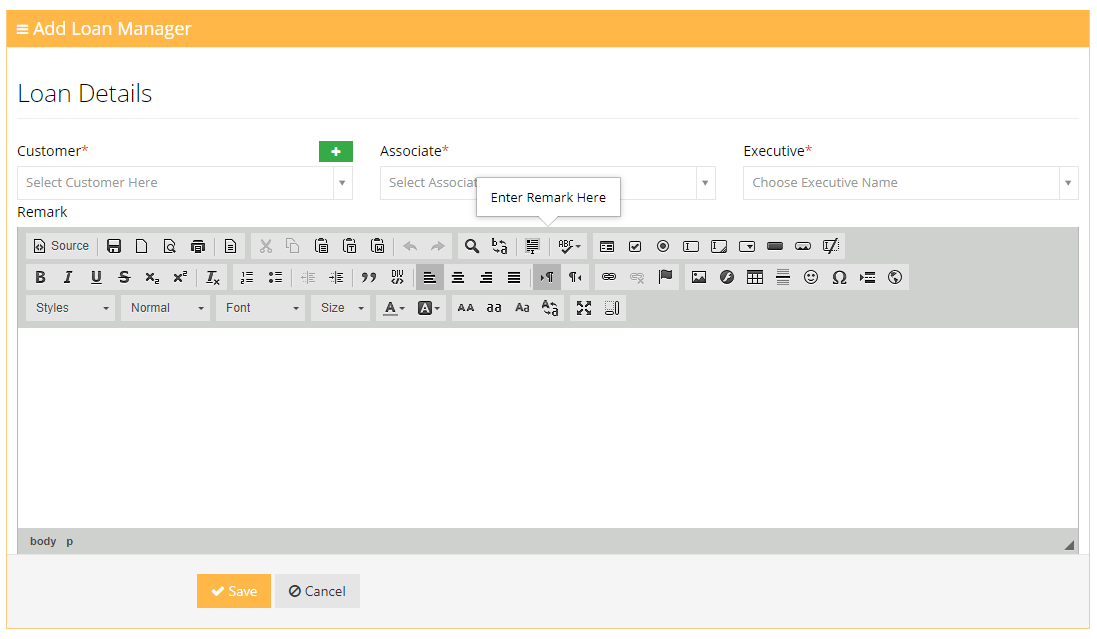
Add New tab given in the top right corner of the File Open List, File Reject List and File Close List section enable user to add new entry of the files. It comprises following fields:
- Customer: This field carry the name of the Customer who applied for the loan.
- Associate: This field carry the name of the Associate.
- Executive: This field carry the name of the Executive who work on that file.
- Remark: This field carry the Additional Information of the file.
Loan Renew
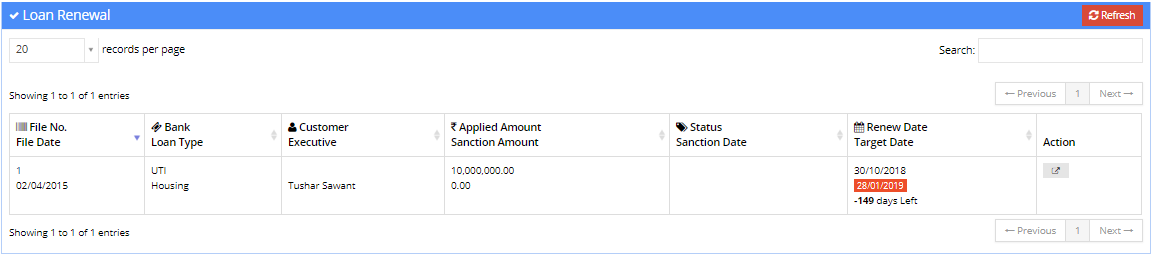
The 'Loan Renew' module displays the list of files whose loan have been renewed. All the records in this module display in the tabular format.
- File No and File Date: This column display the File Number and date.
- Bank and Loan Type: This column display the name of the Bank applied for the loan and Loan Type.
- Customer and Executive: This column display the name of the Customer and the name of Executive who work on that file.
- Sanction Amount and Sanction Date: This column display the Sanctioned Amount and Sanction Date of the files.
- Renew Date and Target Date: This column display the Renew Date and Target Date.
- Action: The action column comprises the link through which user can take specific action on the file.
Setting
Setting is a sub-module of 'Loan MIS' module, where user can control the central settings. The setting is categorized into four parts as given below:
Loan Type
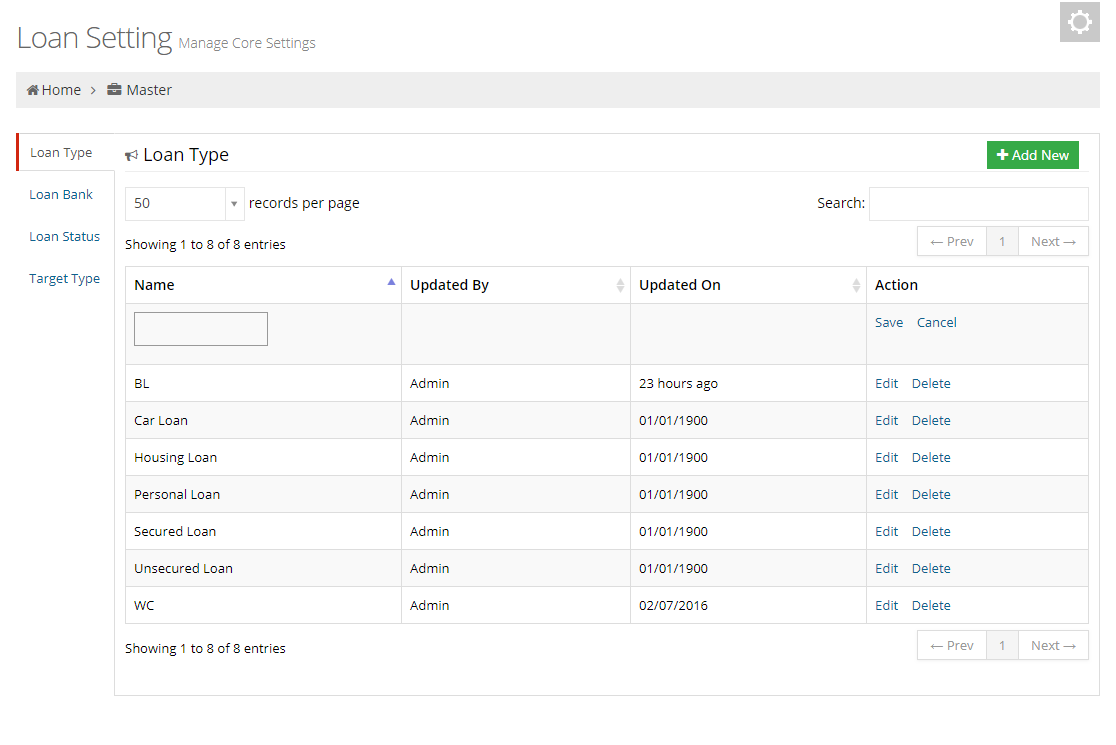
In a 'Loan Type' section user can set loan types. User can add details through the Add New button given in the top right corner of this section. The table of settings contain four columns as follow:
- Name: Displays the name of the file.
- Updated By: Displays the name of the person who updated the settings.
- Updated On: Displays date on which settings are updated.
- Action: The Action section contain two hyperlinks such as Edit and Delete through which user can make changes in the entry or delete the entry.
Loan Bank
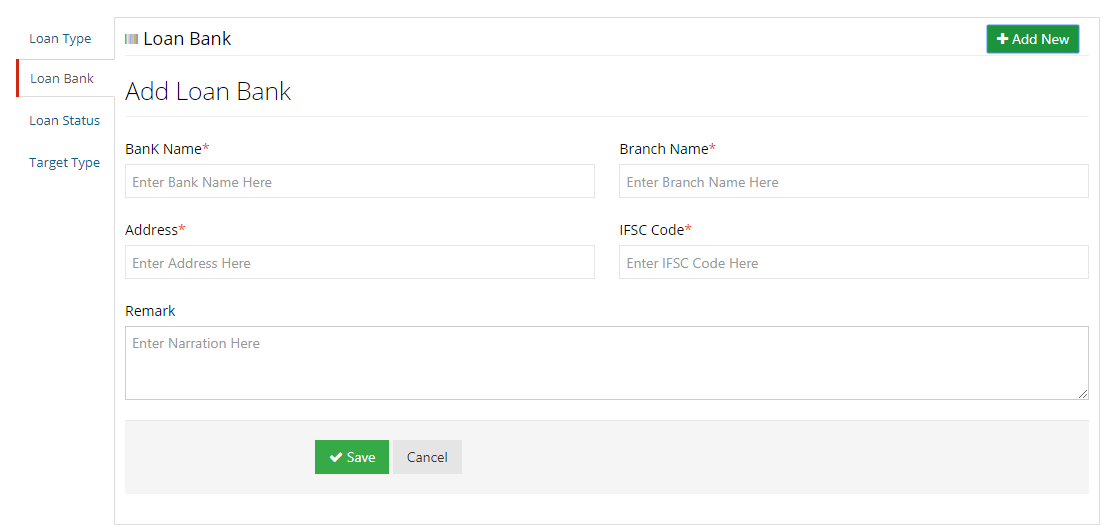
In Loan Bank section user can set the bank details. User can add details through the Add New button given in the top right corner of this section. The Add New tab comprises following fields.
- Bank Name: Enter the name of the bank here.
- Branch Name: Enter the name of the branch here.
- Address: Enter address of the bank here.
- IFSC Code: Enter the IFSC Code of the bank here.
- Remark: Enter the additional information of the bank here.
The table of settings comprises seven columns which are defined.
- Bank Name: Displays the name of the bank(s).
- Branch Name: Displays the branch name of the bank.
- Address: Displays the address of the bank.
- IFSC Code: Displays the IFSC code of the bank.
- Updated By: Displays the name of the person who updated the settings.
- Updated On: Displays the date on which settings are updated.
- Action: The Action section contain two hyperlinks such as Edit and Delete through which user can make changes in the entry or delete the entry.
Loan Status
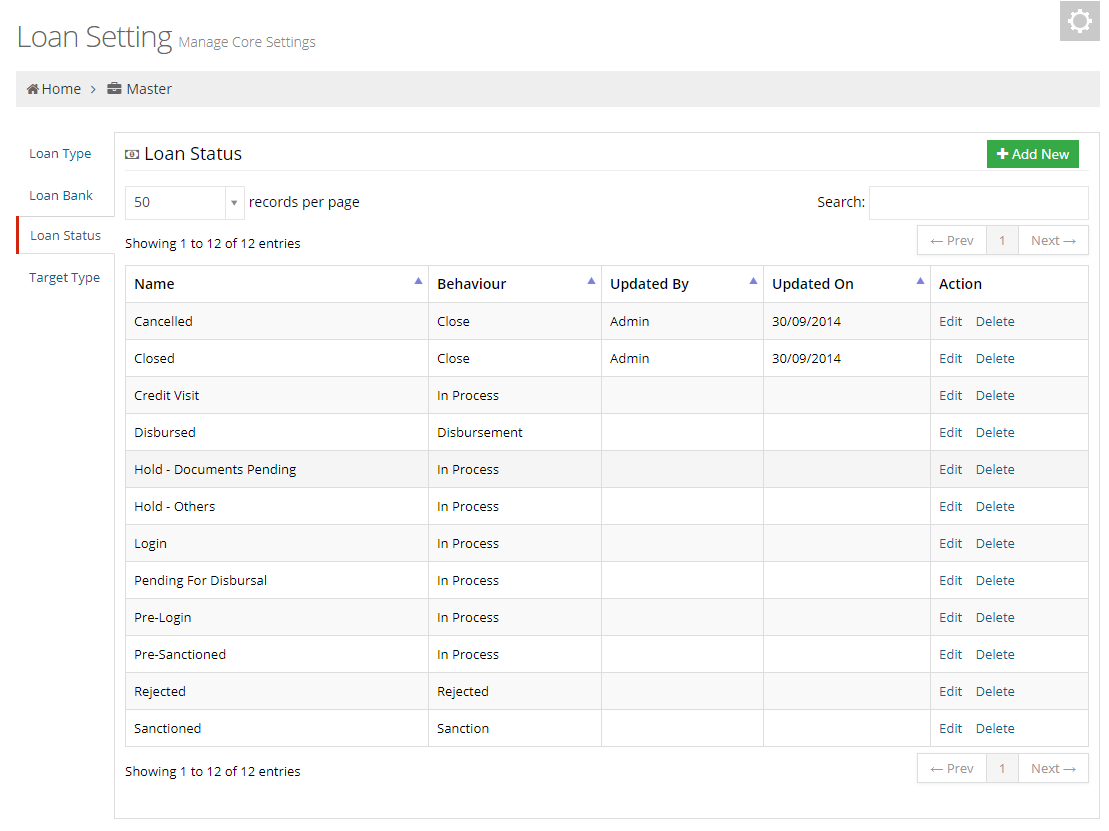
In Loan Status section user can set the status of the loan files.Through the Add New button given in the top right corner of this section user can add status. The table of settings consists of five columns which are as follows:
- Name: Displays the name of the status.
- Behaviour: Displays the behaviour of the status.
- Updated By: Displays the name of the person who updated the settings.
- Updated On: Displays the date on which settings are updated.
- Action: The Action section contain two hyperlinks such as Edit and Delete through which user can make changes in the entry or delete the entry.
Target Type
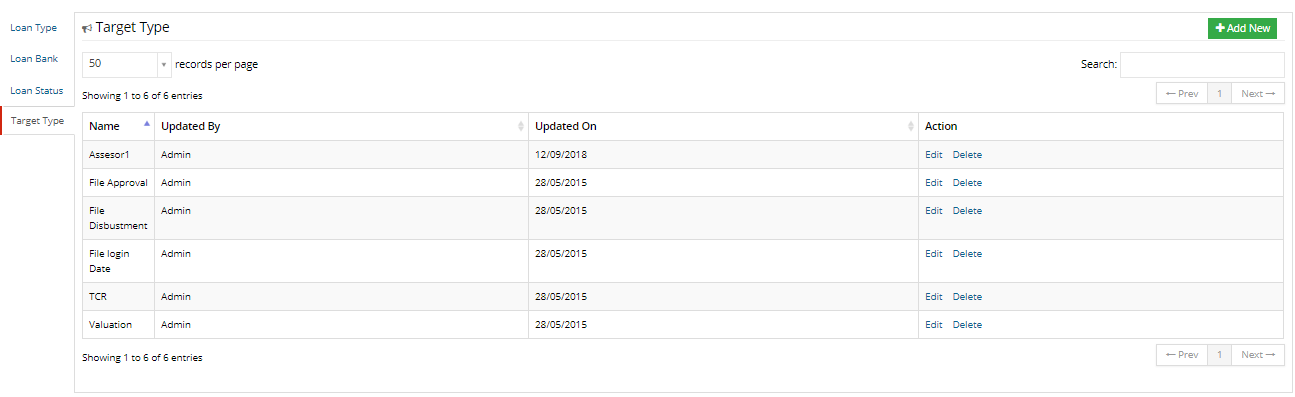
In Target Type section user can defined targets. User can add targets through the add new button which is given in the top right corner of this section. the table of settings consists of four columns as follows:
- Name: Displays the name of the targets.
- Updated By: Displays the name of the person who updated the settings.
- Updated On: Displays the date on which settings are updated.
- Action: The Action section contain two hyperlinks such as Edit and Delete through which user can make changes in the entry or delete the entry.